
On this page
Why your assistant needs your SMS
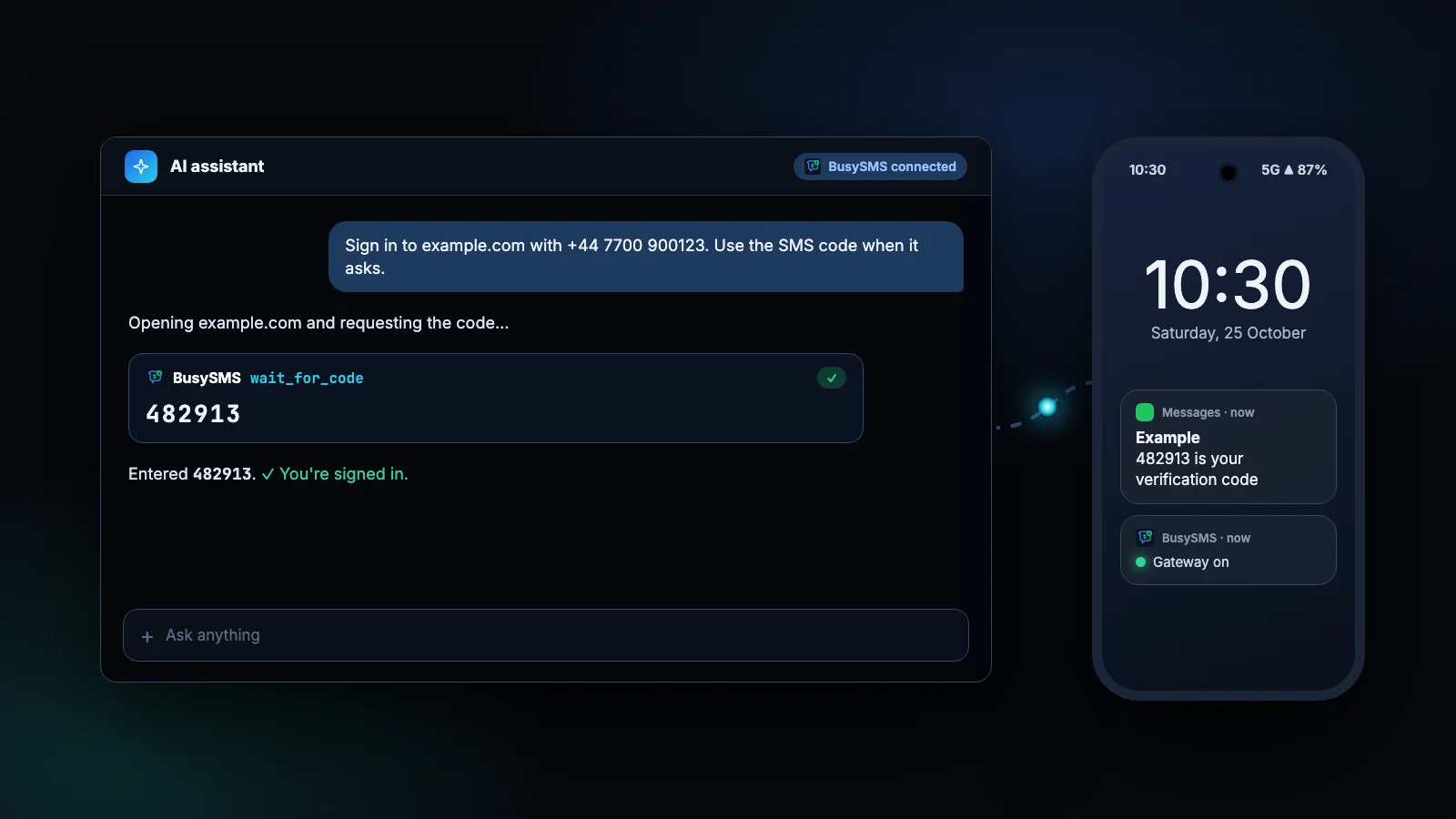
More and more work goes through assistants that act for you: signing in to a dashboard, checking an account, testing your own app. Many of those sign-ins send a one-time code by SMS, and the assistant has no phone. Until now someone had to read the code off a screen and type it into the chat.
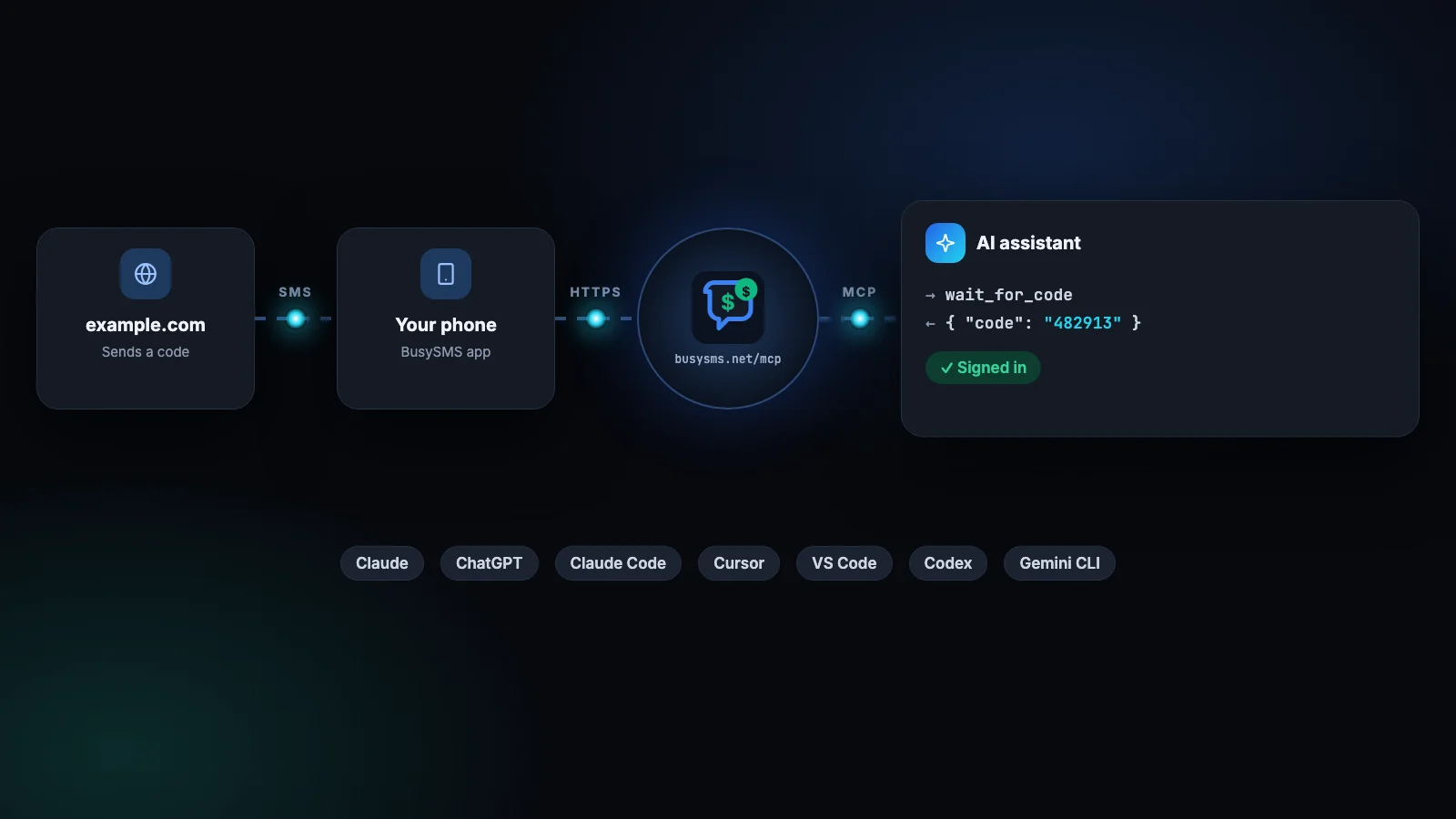
The Model Context Protocol (MCP) is the standard way to give an assistant new tools. BusySMS runs an MCP server that reads the verification codes arriving on phones you own. Connect it once, and the assistant can ask for a code at the moment it needs one.
What you need
- An Android phone with the BusySMS app and your number verified. An iPhone works too, through a Shortcuts automation.
- A BusySMS account with an active trial or subscription. The first 7 days are free.
- An assistant that supports remote MCP servers: Claude, ChatGPT, Claude Code, Cursor, VS Code, OpenAI Codex, Gemini CLI and many more.
Claude (web and desktop)
- 1
Open connectors
In Claude, go to Customize → Connectors, click + Add and choose Add custom connector.
- 2
Add BusySMS
Name it BusySMS, paste
https://busysms.net/mcpas the server URL and click Continue. - 3
Sign in
Keep the OAuth sign-in Claude detects. A BusySMS window opens: enter your email address (or the phone number on your account), type the code we send you and press Allow.
- 4
Use it in a chat
Click + at the bottom left of a chat, open Connectors and check that BusySMS is switched on.
The connector works in the Claude desktop app too. On Team and Enterprise plans an owner adds it once under Organization settings → Connectors, and members click Connect.
Claude's free plan allows one custom connector. Menus move from time to time: if a label differs, look for Connectors in Claude's settings.
ChatGPT
- 1
Turn on Developer mode
In ChatGPT on the web, open Settings, find Developer mode under the security settings and switch it on. Without it there is no field for a server URL.
- 2
Add a custom MCP server
Go to Plugins, click + and choose to add a custom MCP server.
- 3
Fill in BusySMS
Name it BusySMS, enter
https://busysms.net/mcpunder Connection, keep OAuth as the authentication, confirm the warning and click Create. - 4
Sign in and use it
Sign in with your email address (or the phone number on your account) and press Allow. Then start a new chat and mention BusySMS in your request.
At the time of writing, custom MCP servers work in ChatGPT on the web, not in the mobile apps or in temporary chats. Which plans include Developer mode has changed more than once, so if you do not see the option, check OpenAI's help centre.
ChatGPT warns that a custom server has not been reviewed by OpenAI. That is expected: BusySMS is a third-party server that you choose to trust with your codes, so add it only to an account you control.
Claude Code, Cursor, VS Code, Codex and Gemini CLI
Coding tools add the same URL in their own way. Pick yours:
claude mcp add --transport http busysms https://busysms.net/mcp{
"mcpServers": {
"busysms": { "url": "https://busysms.net/mcp" }
}
}{
"servers": {
"busysms": { "type": "http", "url": "https://busysms.net/mcp" }
}
}codex mcp add busysms --url https://busysms.net/mcpgemini mcp add --transport http busysms https://busysms.net/mcpEach one opens a browser window the first time a BusySMS tool is used, for the same sign-in. In Claude Code, run /mcp to sign in straight away.
Try it: ask for a code
Once connected, there are no special commands to learn. Ask in plain words and the assistant picks the right tool:
Open example.com and sign in with +44 7700 900123.
When it asks for the SMS code, use BusySMS wait_for_code
for that number, type the code in and tell me when you are in.
What is the latest verification code BusySMS received?Show me the last SMS my bank sent, in full.My codes stopped arriving. Ask BusySMS what is wrong
with my gateway and tell me what to fix.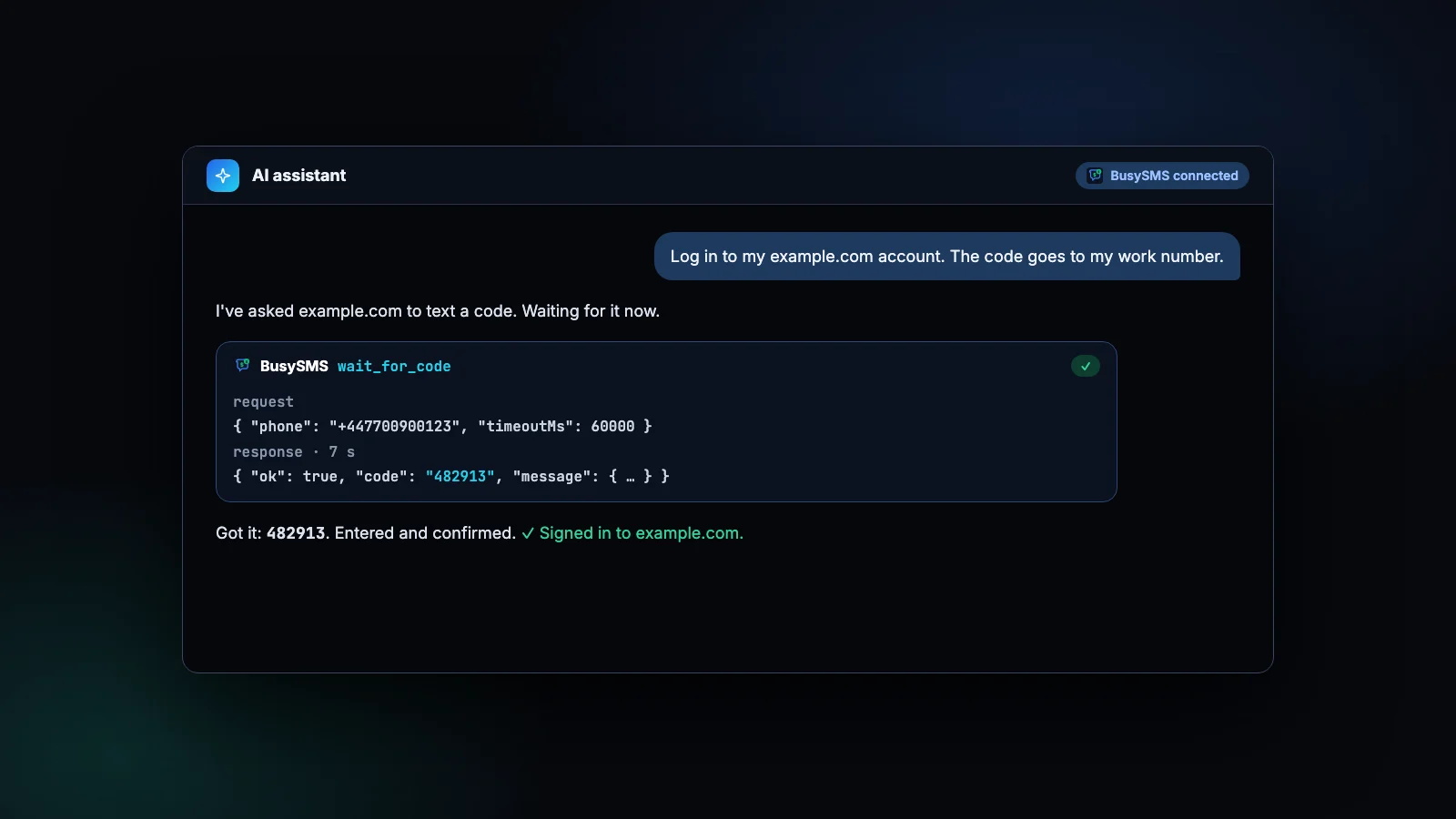
wait_for_code
Waits up to 90 seconds for the next code, and returns nothing rather than an old one.
get_latest_code
The newest code, checked once, with no waiting.
get_latest_sms
The newest message in full, with a one-click copy button in assistants that can show one.
diagnose_my_gateway
Explains why codes are not arriving and what to fix.
Keeping it safe
- Your numbers only. The assistant sees codes from your own numbers and numbers shared with you, never anyone else's.
- A text is just text. Anyone can write an SMS, including one that contains instructions. Ask the assistant to use codes, not to act on what messages say, and keep it on tasks you would do yourself.
- No secrets in the chat. If an assistant creates an API key for you, it gets a one-time link that you open yourself, never the key.
- Easy to remove. Delete the connector in your assistant's settings when you no longer need it.
No OAuth? Use an API key
A few clients cannot sign in with OAuth. They can send a BusySMS API key instead: create one under REST API in the dashboard and send it as Authorization: Bearer bsk_live_…. In Claude, that goes under Request headers when you add the connector.
A key can read codes but cannot change anything: sharing a number, testing your gateway and revoking keys all need a signed-in session.
Try it with your own phone
Install the Android app, verify your number, and the next code shows up on your computer. The first 7 days are free.

FAQ
Frequently asked questions
Does ChatGPT support MCP servers?
Yes. ChatGPT connects to remote MCP servers such as BusySMS through Developer mode on the web. Availability depends on your plan, so check OpenAI's help centre if you do not see the option.
Is the BusySMS connector free?
Adding it is free, and the public tools, such as pricing and setup help, work without an account. Reading your codes needs a BusySMS account: $5 per verified number per month after a 7-day free trial.
Can the assistant read all my text messages?
Only what BusySMS captures: every text from an Android SIM set to Sync all texts (you choose at setup), and verification-style messages from the rest. Code tools return only codes, and the tools reach only your own numbers and numbers shared with you, which show codes only.
Which AI tools work with BusySMS?
Any MCP client that supports remote servers over HTTP: Claude, ChatGPT, Claude Code, Cursor, VS Code, OpenAI Codex, Gemini CLI, Grok and others.
Can my assistant send SMS through BusySMS?
No. BusySMS receives codes; it does not send texts for you. The one exception is send_sms_to_me, which can only text the number on your own account, for example to tell you a long task has finished.
My assistant says no code arrived. What now?
Ask it to run diagnose_my_gateway. It checks that your phone is online, the gateway is on and the number is verified, and says what to change. If you have several numbers, tell the assistant which one the code is going to.
Keep reading
More from the blog
All articles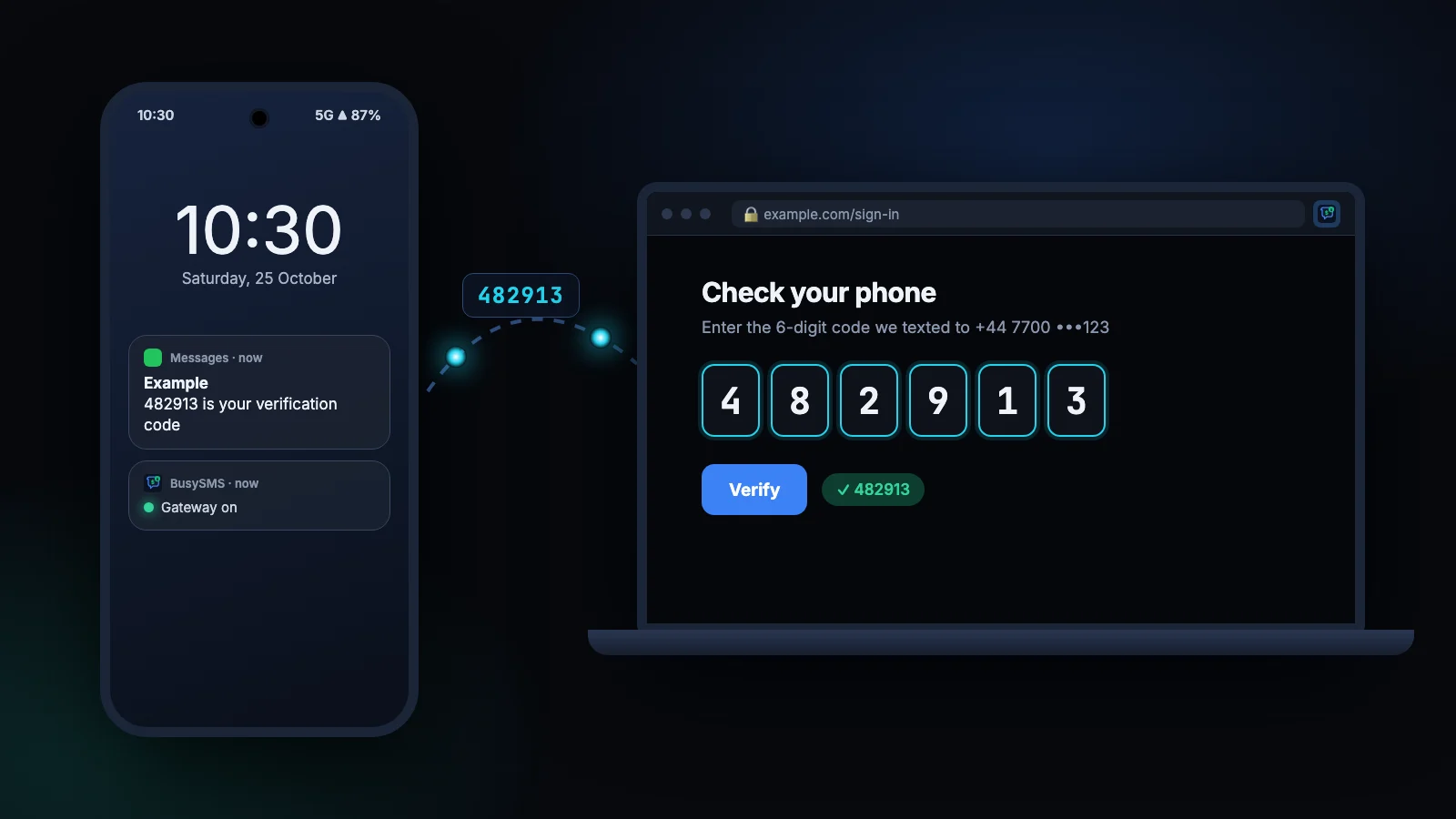
Related guides
SMS codes for AI agents
Let Claude, Codex or any MCP client wait for SMS verification codes through the BusySMS MCP server.
Read the guideAutomate OTP in tests
Automate SMS two-factor codes in Playwright, Selenium, Cypress and plain scripts by waiting for the code over the API.
Read the guideSMS gateway API
The receive-side API reference: authentication, endpoints, the response shape, errors, and curl, Node.js and Python code.
Read the guideTry it on a number you own
Install the app, verify your number and read your first code today. Every account starts with a 7-day free trial; after that it is $5 per verified number per month, and you can cancel any time.