
On this page
The short answer
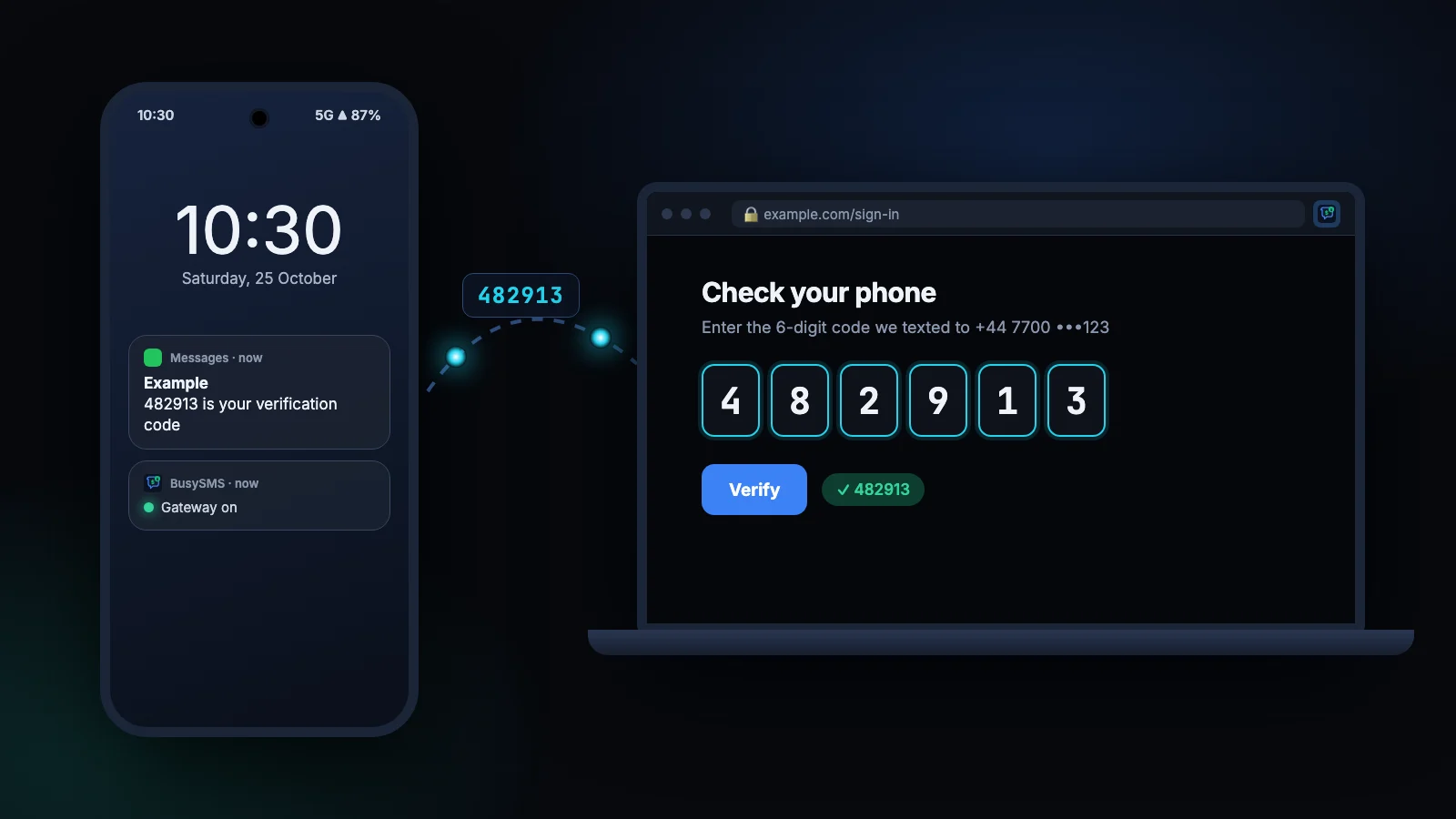
A computer cannot receive SMS on its own: texts are delivered to the SIM card in a phone. What you can do is mirror or forward them from that phone. Which tool fits depends on what you need on the computer:
- Conversations with friends and family, with replies: Google Messages for web on Android, or Phone Link on Windows.
- Verification codes for sign-ins, on any computer and in any browser, typed in for you: BusySMS.
- Codes for software, such as test scripts and AI assistants: BusySMS again, through its API and MCP server.
The rest of this article compares the three, then sets up BusySMS step by step.
The options side by side
Google Messages for web and Phone Link are excellent at what they were built for: chatting from a bigger keyboard. BusySMS does a narrower job that they were not designed for.
| What you get | BusySMS | Messages for web · Phone Link |
|---|---|---|
| Phone | Android, or an iPhone through a Shortcuts automation | Messages for web: Android. Phone Link: Android and iPhone |
| Computers | Any computer or browser you sign in on, several at once | The browser or PC you paired with the phone |
| Reply to texts | No, BusySMS only receives | Yes |
| What reaches the computer | On Android, every text or verification codes only, your choice; iPhone forwards codes only | All your conversations |
| Code typed into the sign-in page | Yes, with the Chrome extension | No, you copy it yourself |
| Share codes with a colleague | Yes, up to five people per number | No |
| API and AI assistants | REST API and an MCP server | None |
| Price | $5 per verified number per month after a 7-day free trial | Free |
Option 1: Google Messages for web (Android)
If your Android phone uses Google Messages, as most do, you can open your conversations in a browser:
- 1
Open the web app
On the computer, go to messages.google.com/web.
- 2
Pair the phone
In Messages on the phone, tap your profile picture, then Device pairing, and scan the QR code shown on the computer.
- 3
Read and reply
Your conversations appear in the browser and stay in sync with the phone, which has to stay connected to the internet.
It is the right tool for chatting. For sign-in codes it still leaves you reading digits and copying them across, and only on the computer you paired.
Option 2: Phone Link on Windows
Windows 10 and 11 come with Phone Link. Pair it with the Link to Windows app on Android, or with an iPhone over Bluetooth, and your texts and notifications show up on that PC.
It suits someone who works at one Windows PC all day. It does not help on a Mac, on a work laptop where you cannot install apps, or for anyone but you.
Option 3: BusySMS, for verification codes
BusySMS turns an Android phone into a small SMS gateway for numbers you own. When a verification text reaches the phone, the code goes to your BusySMS account, and from there to wherever you are signed in: the web dashboard, the Chrome extension, your scripts and your AI assistant.
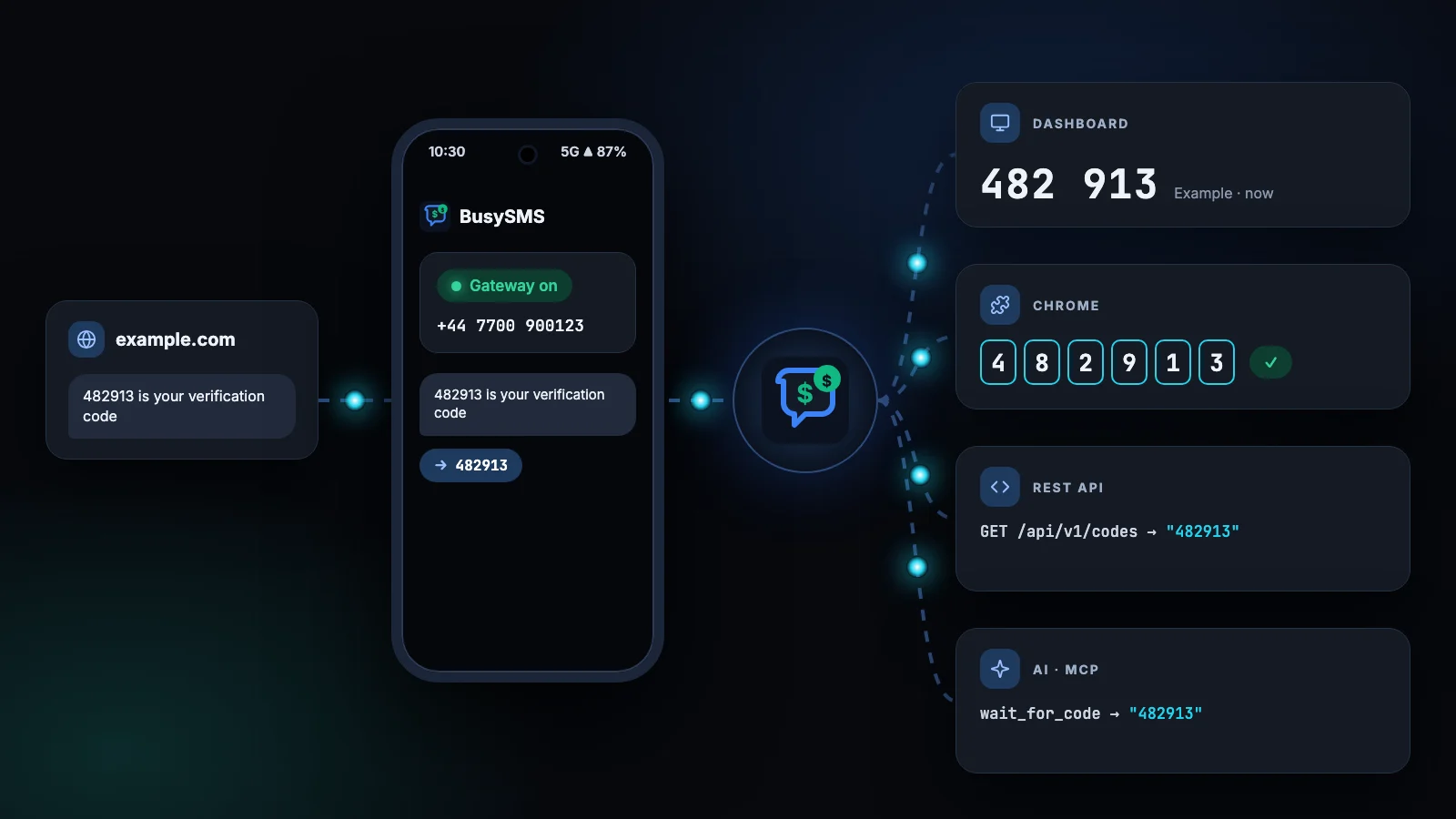
- Any computer. Sign in at busysms.net on a PC, a Mac or a Chromebook and your codes are there, with nothing to pair.
- Typed in for you. The Chrome extension fills the code into the page that asked for it.
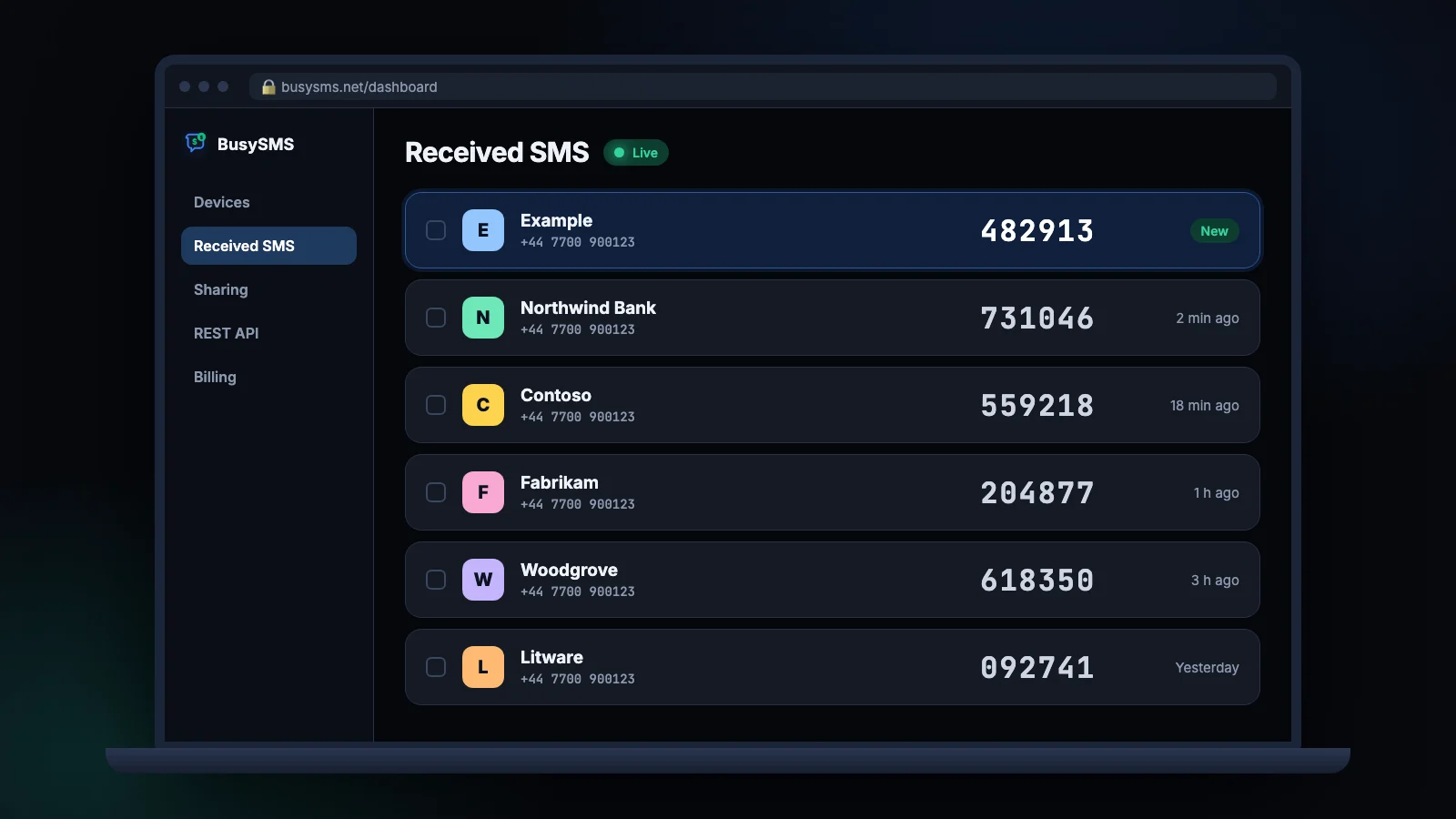
- Live. A new code appears seconds after it reaches the phone, without reloading the page.
- Shareable. Let up to five colleagues see the codes for one number, so a shared account does not depend on whoever holds the phone.
Set up BusySMS in five minutes
- 1
Install the app
Install BusySMS from Google Play on the Android phone that holds the SIM, and sign in with your email address. There is no password to create.
- 2
Start the gateway
Tap Start gateway and allow BusySMS to read SMS when Android asks. The app only asks at this point, once you have chosen to use it.
- 3
Verify your number
BusySMS texts a code to the SIM and checks that it arrives, which proves the number is yours. It usually takes a few seconds, with nothing to type.
- 4
Open the dashboard
On your computer, sign in at busysms.net/dashboard with the same account and open Received SMS. From now on, codes appear there as they arrive.
- 5
Add the browser extension
Install BusySMS OTP Autofill for Chrome and sign in once. After that, code fields fill themselves.
Let the code type itself
Copying six digits is not hard. Doing it twenty times a day between two devices is. With the extension installed, a site that asks for an SMS code gets it filled in as soon as the text reaches your phone. The toolbar popup also shows the latest code with a copy button, for the odd form that autofill cannot reach.
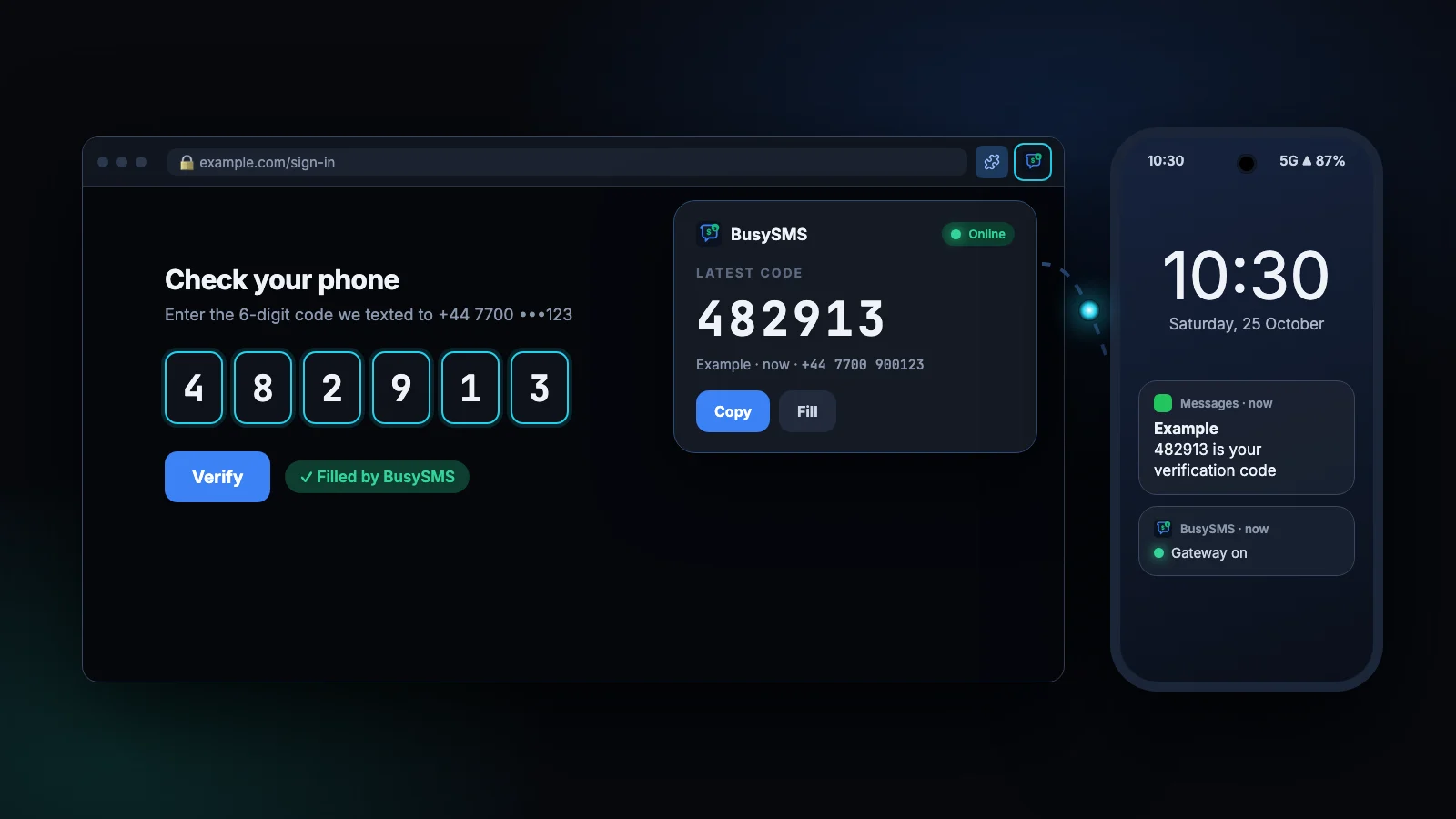
It works in Chrome and in browsers that install extensions from the Chrome Web Store, such as Microsoft Edge and Brave.
What BusySMS reads, and what it does not
- Every text, or codes only: you choose. On Android, setup asks once whether to sync all your texts to your computer or only messages that look like a one-time code, and you can change it for each SIM at any time. Synced texts are visible only to you and never shared.
- Only numbers you verified. A number becomes yours on BusySMS once it has received our code, and each number belongs to one account.
- Only while the gateway is on. Switch it off and nothing is captured. When you switch it back on, it picks up verification texts from the last 15 minutes.
- Not kept for long. Captured messages are deleted after at most 7 days.
What it costs
The app is free to install, and every account starts with a 7-day free trial with everything included. After that it is $5 per verified number per month, billed by Stripe on the web, with no charge per message.
Try it with your own phone
Install the Android app, verify your number, and the next code shows up on your computer. The first 7 days are free.

FAQ
Frequently asked questions
Can I receive SMS on my computer without my phone?
Not for your own number. Texts are delivered to the SIM, so the phone has to be switched on and connected somewhere. It does not have to be with you, though: many people leave a spare Android phone plugged in at home or in the office and read its codes on any computer.
Can I reply to text messages from my computer with BusySMS?
No. BusySMS only receives. To reply to texts from a computer, use Google Messages for web or Phone Link.
Does it work on a Mac, Linux or a Chromebook?
Yes. The dashboard runs in any modern browser, and the extension works in Chrome on every desktop system.
Does it work with an iPhone?
Yes, through a Shortcuts automation that forwards only texts that look like a code. See forwarding SMS codes from an iPhone.
Is it safe to forward verification codes?
Codes go only to your own account, over an encrypted connection, and only from numbers you have verified. Treat your BusySMS sign-in like any account that can see your codes: keep it to yourself, and give colleagues access through BusySMS sharing rather than your login.
Can I read codes from several phones on one computer?
Yes. Every verified number appears in the same dashboard and extension, and a dual-SIM phone counts as two numbers. Each number is billed separately.
Keep reading
More from the blog
All articles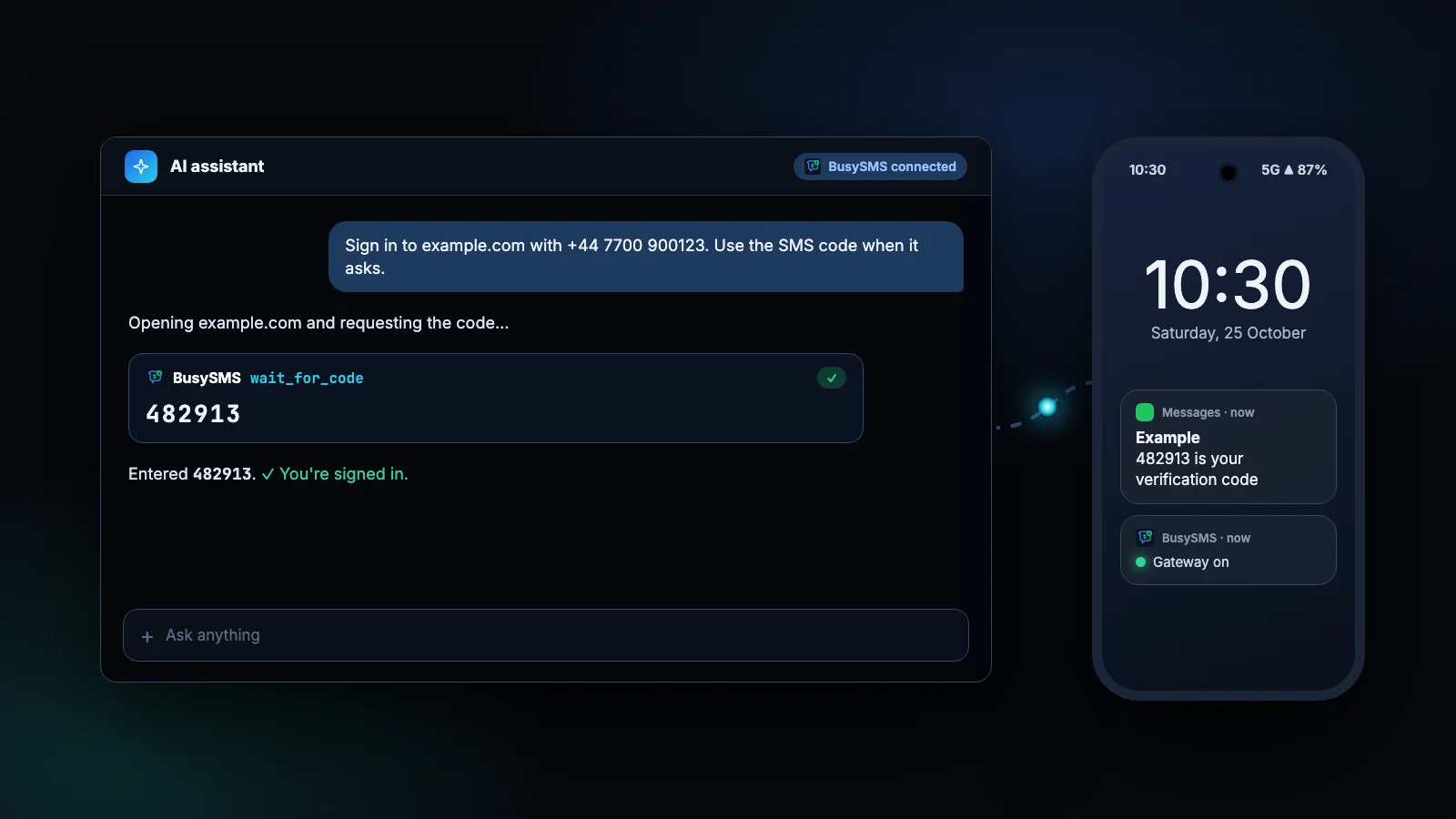
Related guides
Android SMS gateway
Turn an Android phone you own into a gateway whose verification codes you read over an API, MCP, the dashboard or Chrome.
Read the guideForward SMS codes from iPhone
Forward verification codes from an iPhone to your computer, Chrome and API with one Shortcuts automation.
Read the guideReceive SMS API
Receive codes through an API on numbers you own, and how that differs from "receive SMS online" virtual-number services.
Read the guideTry it on a number you own
Install the app, verify your number and read your first code today. Every account starts with a 7-day free trial; after that it is $5 per verified number per month, and you can cancel any time.